See it in real Outlook,
before your customers do.
One click screenshots your email in 40+ real email clients and puts each screenshot next to our simulation.
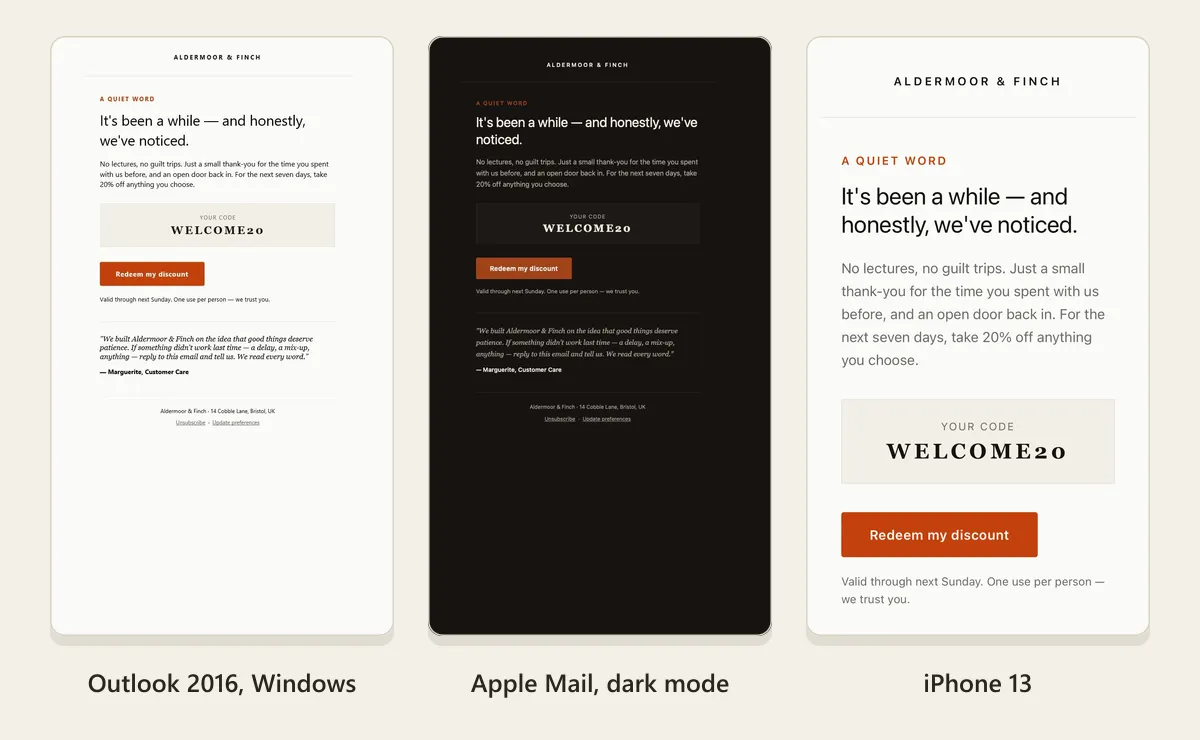
Simulate, fix, then see it for real
Simulation is fast and tells you why something breaks. A real-device check is the last step, on the version you are about to send.
- 1
Simulate
Paste your email, or catch the one your app sends in a sandbox inbox. We render it in 21 clients and flag what breaks in each.
- 2
Fix
Every issue comes with its fix, written in your framework. Apply it yourself, or let AI Fix rewrite the parts that break.
- 3
Validate
Preview again. The scores show what you fixed, and anything the fix broke in another client.
- 4
See it on real devices
One click screenshots the final version in 40+ real clients, each next to its simulation.
Run real-device check
Capturing 0/43
Microsoft Outlook 2016, captured
Microsoft Outlook 2019, captured
Apple Mail (Dark), captured
Office 365 (Light), captured
iPhone 13, captured
Yahoo (Chrome), captured
Capturing 38/43
43 clients captured
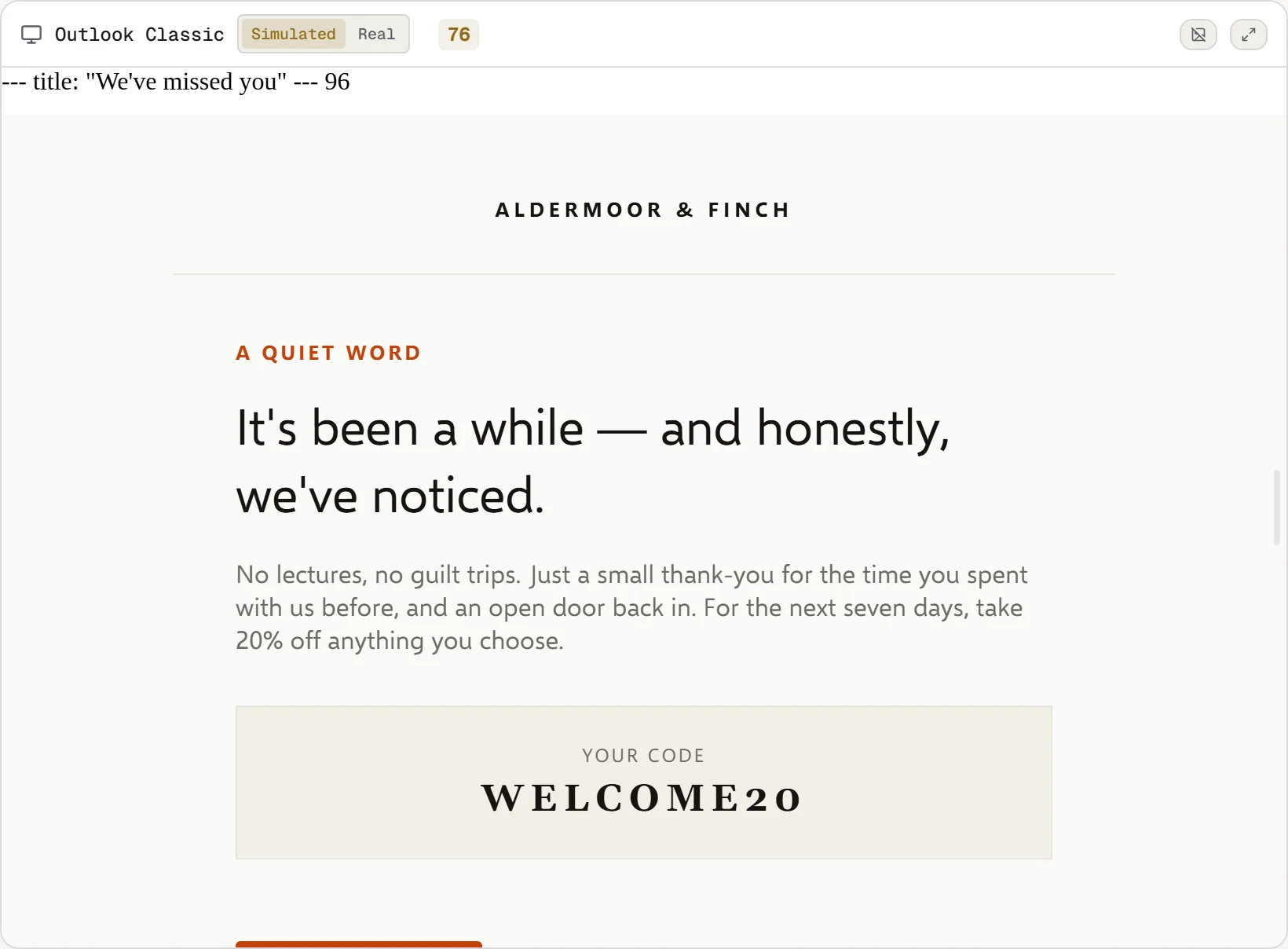
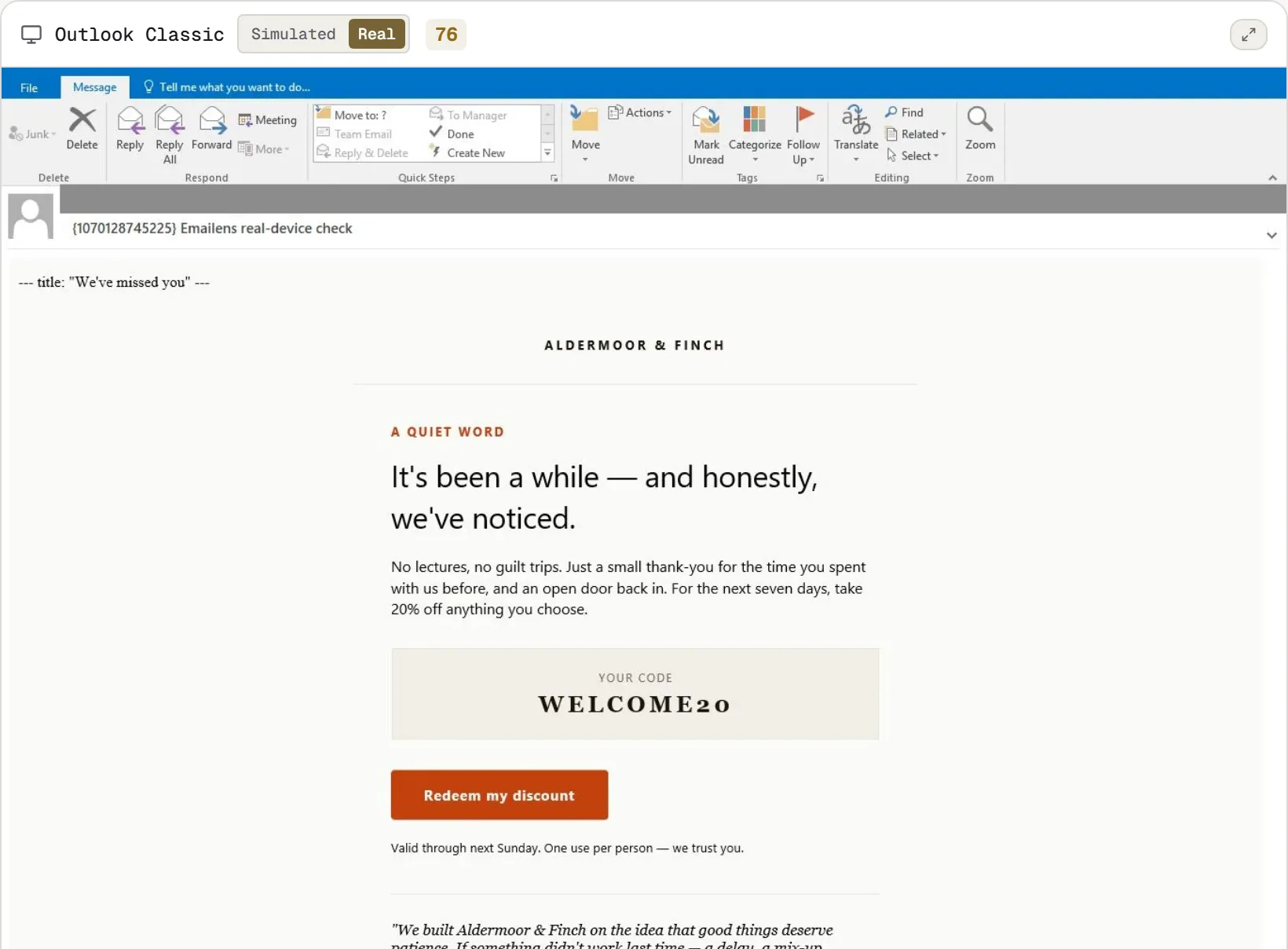
One preview, two sources
Flip any client between our simulation and its real screenshot without leaving the preview.
Every client on one sheet
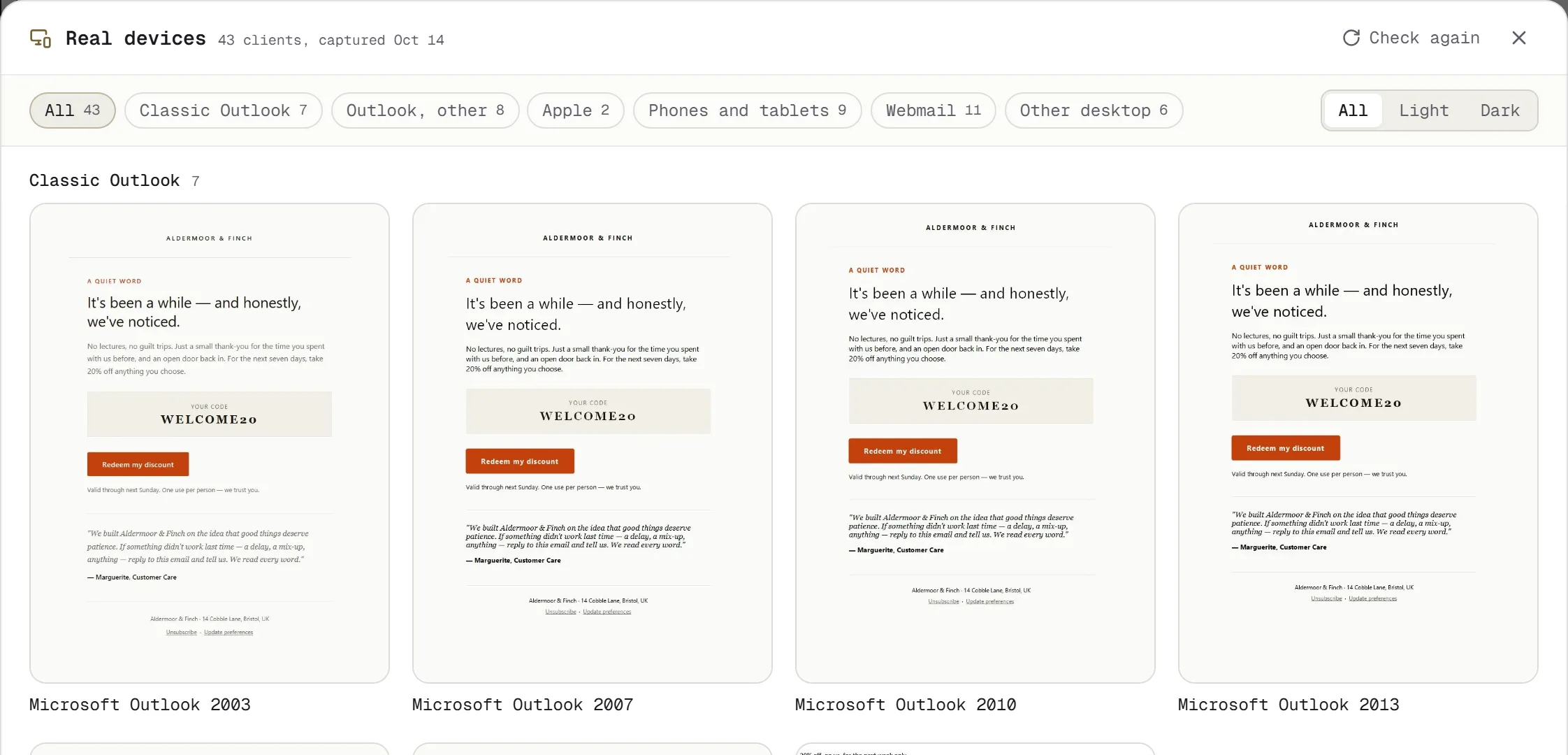
Grouped by family, filtered by light or dark. Open any client to see its whole window, then jump back to the simulation.
Built for Classic Outlook
Classic Outlook lays your email out with Microsoft Word, which no browser can fully imitate. We measured our simulation against real Outlook screenshots and rebuilt it.
102
before
177
now
Layout test cases, out of 179, where our Outlook Classic simulation matches real Outlook. For the rest, and for every send that matters, the real screenshot is the final word.
40+ real clients in one check
- Classic Outlook
- Outlook 2003, 2007, 2010, 2013, 2016 and 2019 on Windows
- Outlook, other
- Outlook for Mac, Outlook.com and Office 365, light and dark
- Apple
- Apple Mail on macOS, light and dark
- Phones and tablets
- iPhone 8 to 13 Pro Max and iPad, in Apple Mail
- Webmail
- Yahoo, AOL, iCloud, Zoho and regional webmail
- Other desktop
- Thunderbird, Windows 10 Mail, eM Client, Postbox
Not covered: the Gmail app on iPhone, the new Outlook for Windows, Samsung Mail, and iPhones newer than the 13.
Questions about real-device checks
How much does a real-device check cost?
Every account includes one free check, on the 12 clients most emails are judged on: Outlook 2016 and 2019, Office 365 light and dark, Outlook.com light and dark, Apple Mail light and dark, Outlook for Mac, Windows 10 Mail, iPhone 13 and Yahoo. It unlocks once your email address is verified and you have run one preview. More checks, on all 40+ clients, come with Dev + Real ($19 a month or $190 a year, 20 checks a month) or Pro + Real ($39 a month or $380 a year, 50 checks a month).
Why are there grey bars in the screenshots?
Each screenshot is taken in a real mail client, and the client shows the sender and recipient of the test inbox used to take it. Grey bars cover those rows. The rest of the window stays visible, so you can see it is the real client.
Why is my email cut off at the bottom?
Desktop and webmail screenshots are a window, not the whole page: about 3,900px tall for Windows clients and webmail, about 2,540px for Apple Mail and Outlook for Mac. Phone screenshots are full length.
Can I trust every screenshot equally?
No. Classic Outlook, Apple Mail, Outlook for Mac and Thunderbird are the most reliable. The Gmail web capture does not apply Gmail's sanitiser, so an email can look better there than in real Gmail; for Gmail, trust the simulation and its warnings. The Outlook.com captures ignore styles in the head, which real Outlook.com applies.
Where does my email's HTML go?
It is sent to our rendering partner to take the screenshots. We copy the screenshots to our own storage and delete the email and its screenshots from the partner as soon as the run ends. Screenshots are kept for 90 days.
Does running the same email twice use two checks?
No. The same email within 24 hours returns the saved run. Check again uses a check only if the email changed.
More detail in the real-device checks guide.
Your first check is free.
On the 12 clients most emails are judged on, once you have run your first preview. More checks and every client come with Dev + Real or Pro + Real, from $19 a month.
Run your free check