See it in real Outlook,
before your customers do.
A broken email looks fine in the tool that built it. One click screenshots yours in real Outlook on Windows and Mac, Apple Mail on Mac and iPad, Gmail and Yahoo on the web and Android, and Proton, each next to our live preview, so you see what your customers will.
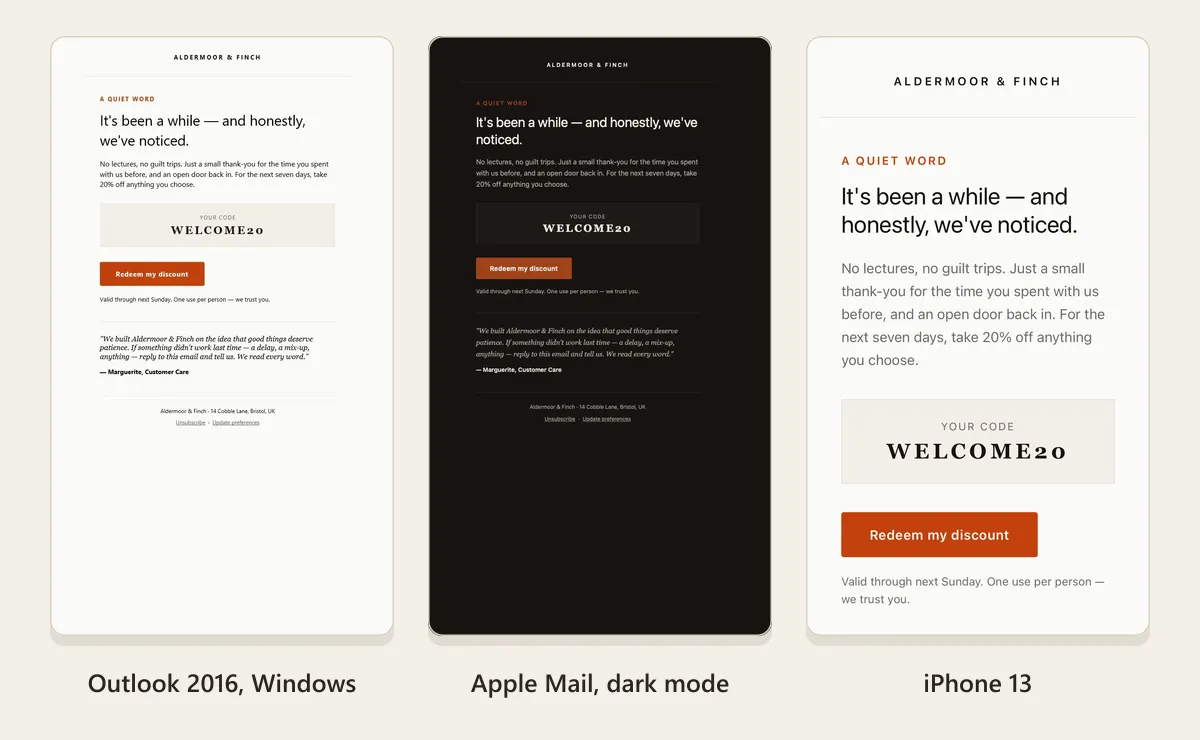
Preview live, fix, then see it for real
The live preview is fast and tells you why something breaks. A real-device check is the last step, on the version you are about to send.
- 1
Preview live
Paste your email, or catch the one your app sends in a sandbox inbox. We render it in 21 clients and flag what breaks in each.
- 2
Fix
Every issue comes with its fix, written in your framework. Apply it yourself, or let AI Fix rewrite the parts that break.
- 3
Validate
Preview again. The scores show what you fixed, and anything the fix broke in another client.
- 4
See it on real devices
One click screenshots the final version in real Outlook on Windows and Mac, Apple Mail on Mac and iPad, Gmail and Yahoo on the web and Android, and Proton, each next to its live preview.
Run real-device check
Capturing
Outlook (classic), captured
Outlook for Mac, captured
Apple Mail (Mac), captured
Apple Mail (iPad), captured
Gmail (web), captured
Gmail (Android), captured
Every client captured
One preview, two sources
Flip any client between our live preview and its real screenshot without leaving the preview.
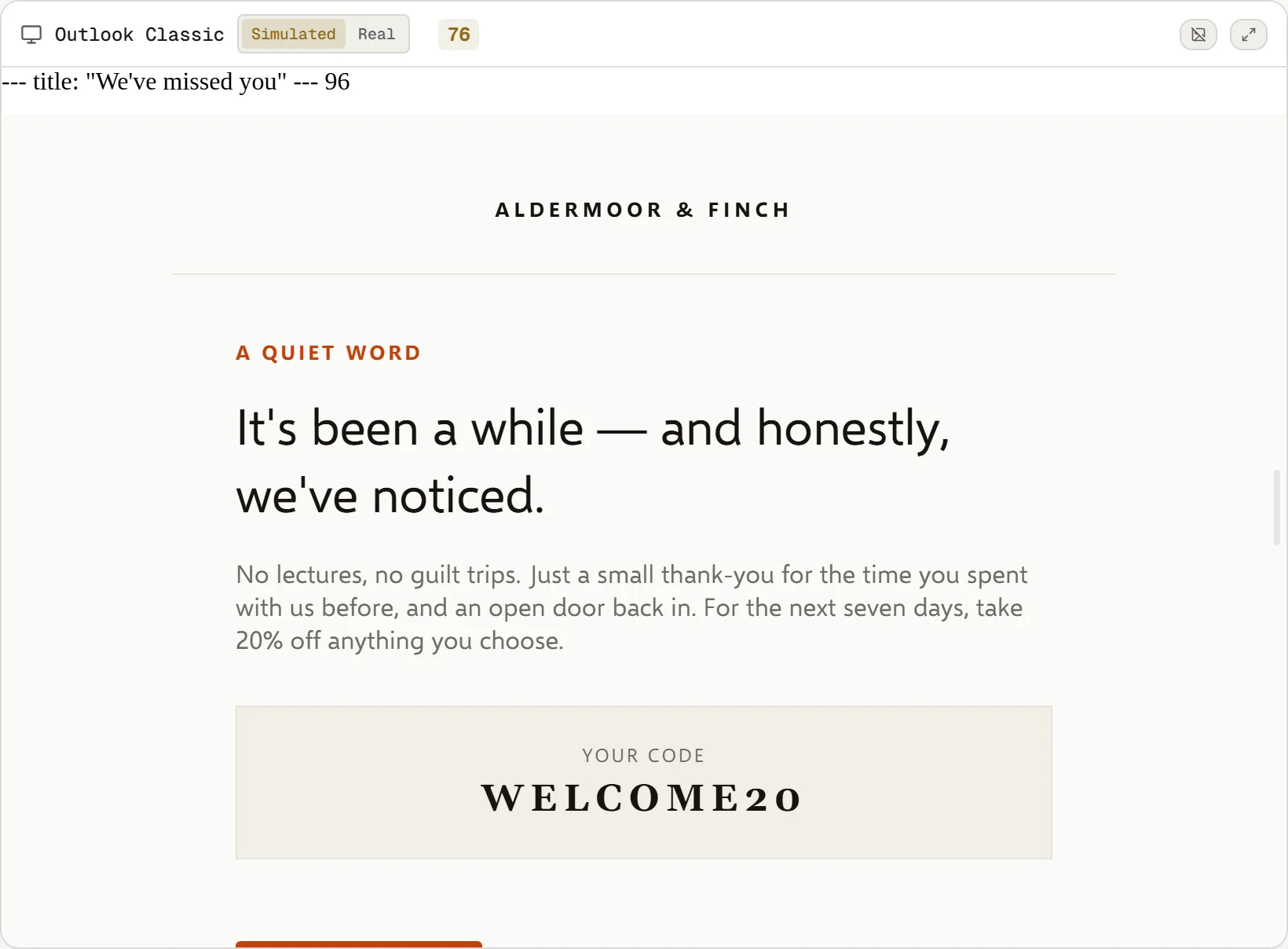
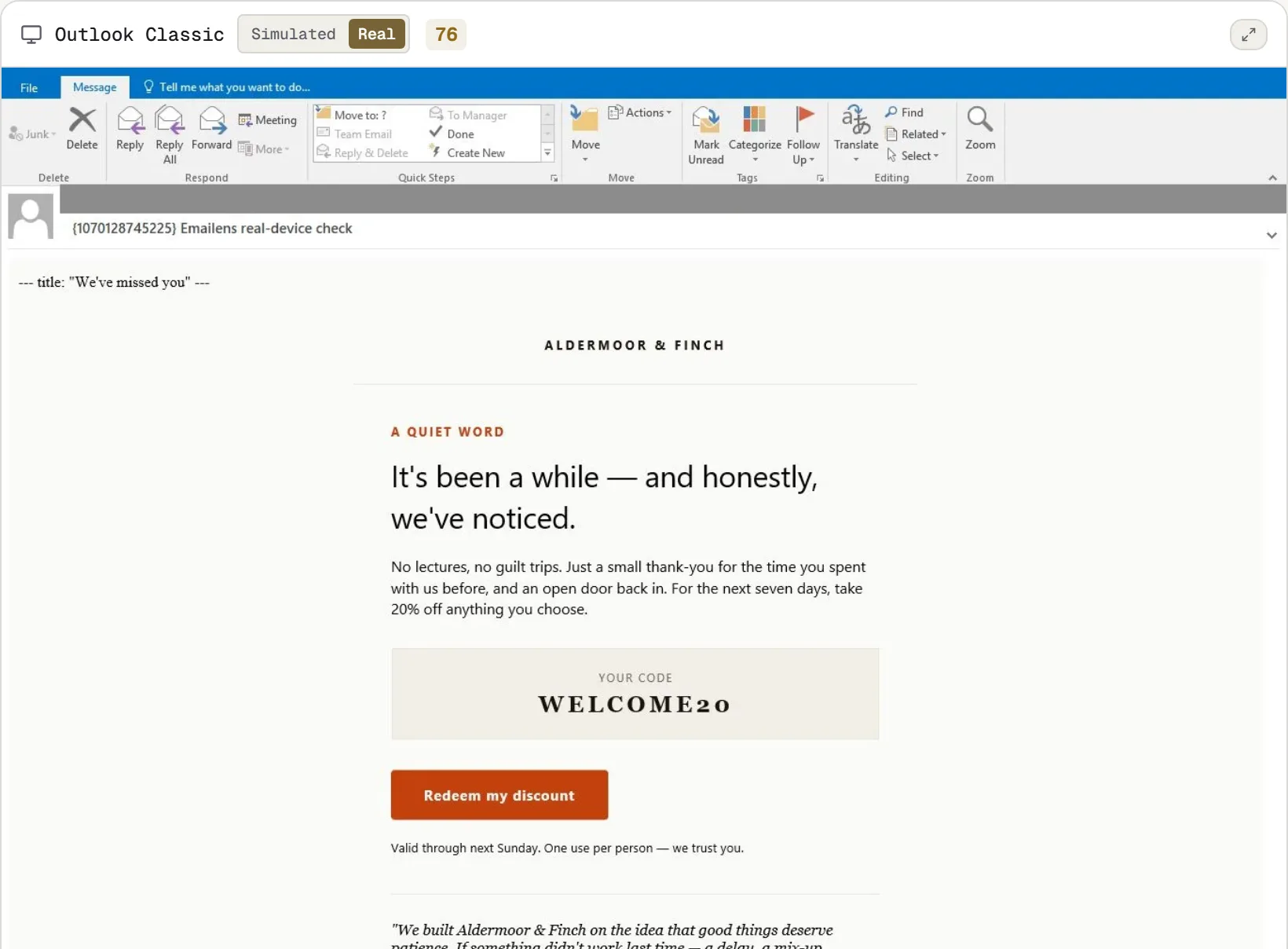
Why not screenshots alone?
A screenshot shows what broke. The live preview shows why, with the fix, and it is included on every plan, free included. Fix with the live preview at every draft, and spend real checks on the version you send.
We grade our live preview against these same real screenshots. Last run: 61 pairs, graded by a person. Every client in the live preview tracks 300 CSS features, and 13 support cells already corrected by a real inbox. See every finding.
Built for Classic Outlook
Classic Outlook lays your email out with Microsoft Word, which no browser can fully imitate. A button's text turns black, a coupon code slides out of its box, and every browser preview still says it looks fine. We measured our live preview against real Outlook screenshots and rebuilt it.
102
before
177
now
Layout test cases, out of 179, where our Outlook Classic live preview matches real Outlook. For the rest, and for every send that matters, the real screenshot is the final word.
Real Outlook, Apple Mail and webmail in one check
- Classic Outlook
- Outlook (classic) on Windows, on real Windows hardware
- Outlook, other
- The new Outlook for Windows, and Outlook for Mac
- Apple
- Apple Mail on macOS
- Phones and tablets
- Apple Mail on iPad, and the Gmail and Yahoo Mail apps on Android
- Webmail
- Gmail, Yahoo Mail and Proton Mail, in their own web apps
- Dark mode
- Optional on every check, for a second check
Not covered yet: the iPhone, Outlook.com, the Outlook phone apps and Samsung Mail.
Questions about real-device checks
How much does a real-device check cost?
Every account includes one free real-device check in classic Outlook, Outlook for Mac and Apple Mail, after you verify your email and run one preview, while this month's free capacity lasts. Those are the clients most emails are judged on; Apple Mail is captured on both Mac and iPad. More checks, in real Outlook on Windows and Mac, Apple Mail on Mac and iPad, Gmail and Yahoo on the web and Android, and Proton with dark mode optional, come with Dev + Real ($19 a month, or $190 a year, saving $38; 20 checks a month) or Pro + Real ($39 a month, or $380 a year, saving $88; 50 checks a month).
Why are there grey bars in the screenshots?
Each screenshot is taken in a real mail client, and the client shows the sender and recipient of the test inbox used to take it. Grey bars cover those rows. The rest of the window stays visible, so you can see it is the real client.
Why is my email cut off at the bottom?
Desktop and webmail screenshots are a window, not the whole page: about 3,900px tall for Windows clients and webmail, about 2,540px for Apple Mail and Outlook for Mac. Phone screenshots are full length.
Can I trust every screenshot equally?
Each one is the real client: classic Outlook, the new Outlook, Outlook for Mac and Apple Mail on real machines, Gmail, Yahoo Mail and Proton Mail in real inboxes in their own web apps, and the Gmail and Yahoo Mail apps on Android. A screenshot shows one window width, and a capture can occasionally fail to load images. If one client shows alt text while the rest show images, run it again before you change your email.
Where does my email's HTML go?
For the Outlook and Apple Mail screenshots, it is sent to our rendering partner, with a fixed subject line and never your name or address. Their copies stay on our account with them until we have them deleted. For Gmail, Yahoo and Proton, it goes to test inboxes we own, and each message is deleted for good once its screenshot is taken. Some Outlook screenshots are taken on our own computer from a temporary local file, deleted the same way. We copy the screenshots to our own storage and keep them for 90 days.
Does running the same email twice use two checks?
No. The same email within 24 hours returns the saved run. Check again uses a check only if the email changed.
More detail in the real-device checks guide.
Your first check is free.
Every account includes one free real-device check in classic Outlook, Outlook for Mac and Apple Mail, after you verify your email and run one preview, while this month's free capacity lasts. More checks and every client come with Dev + Real or Pro + Real, from $19 a month.
Run your free check